
Table of Contents
- Smart Lock Connection Issues: Where to Start
- Smart Lock Not Connecting to Wi-Fi
- Smart Lock Bluetooth Connection Problems
- How to Reboot a Smart Lock
- Smart Lock Battery Troubleshooting
- Step-by-Step Recovery That Preserves Access
- When to Call a Locksmith or the Manufacturer
- Frequently Asked Questions
Last Updated: October 18, 2026
Smart Lock Connection Issues: Where to Start
A smart lock connection issue is any failure that stops your electronic door lock from talking to its app, hub, or network.
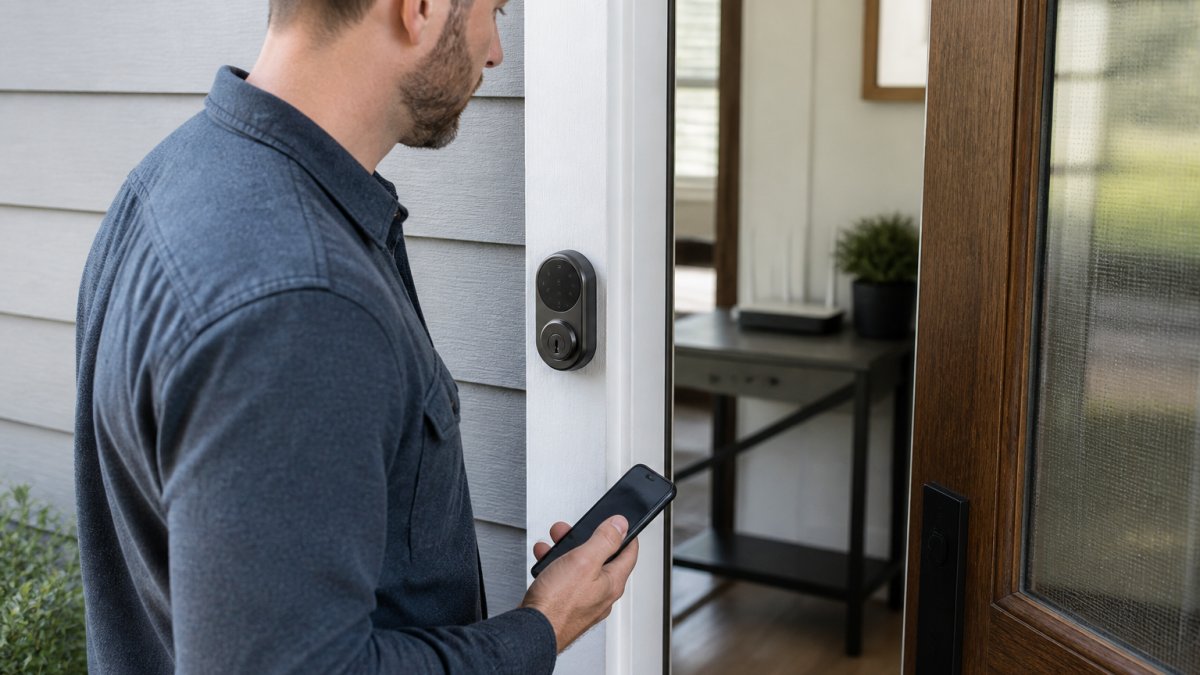
Here is the good news. You can usually fix a smart lock connection problem in under 15 minutes without tools.
But first, here’s what most guides get wrong: they treat every failure the same. A lock that never connected is a different problem from a lock that worked for a year and then dropped offline.
Map the connection path: Bluetooth, Wi-Fi, hub, or Thread
Before you touch anything, figure out how your lock actually connects. The path decides where to look.
- Bluetooth: Your phone talks directly to the lock. Short range, no router involved.
- Wi-Fi: The lock joins your home wireless network. It needs a 2.4 GHz signal.
- Hub or bridge: The lock talks to a small box, and the box talks to your router.
Most “connection” complaints are really range complaints. Walk to the door with your phone and watch the signal strength in the app. If it drops below half when you stand outside, the lock is too far from the router or hub.
Smart Lock Not Connecting to Wi-Fi
A smart lock that won’t join Wi-Fi usually fails at one of three layers: the radio band, the router’s security and addressing rules, or the network topology itself. Work through them in that order, most failed setups clear at layer one or two, and the ones that don’t are almost always a mesh or isolation problem.
Layer 1: The 2.4 GHz band
Most smart locks ship with a 2.4 GHz-only radio. They cannot see or join a 5 GHz network, and they cannot negotiate band steering. If your router broadcasts one network name for both bands, the lock may repeatedly attempt the 5 GHz side and time out during pairing.
- Open the router’s admin app or page and confirm the 2.4 GHz radio is enabled.
- If the router supports a separate 2.4 GHz SSID, create one and give it a distinct name (for example, “HomeLock24”).
- During pairing, bring the lock within a few feet of the router, complete setup, then reinstall it at the door.
- Re-run the in-app pairing flow and watch for a “network not found” versus “authentication failed” message, they point to different layers.
Layer 2: Router security and addressing
Band selection is only half the story. These settings quietly block smart locks even when the 2.4 GHz signal is strong:
- Band steering: Some routers push dual-band-capable clients to 5 GHz automatically. A 2.4 GHz-only lock can get caught in the steering logic and fail to associate. Disable steering for the lock’s MAC address, or use a dedicated 2.4 GHz SSID.
- WPA3-only mode: Older lock radios often support WPA2-PSK only. Switch the 2.4 GHz network to WPA2/WPA3 mixed mode, or WPA2-PSK if the router allows it.
- AP isolation (client isolation): Prevents wireless clients from seeing each other. The lock may join the network but never reach the app or hub. Turn isolation off for the lock’s SSID.
If the lock worked before and stopped after a router change or firmware update, one of these is the likely cause. Roll back the last change and retest before touching the lock.
Layer 3: Mesh and topology
Mesh systems add a wrinkle: the lock may associate with a satellite node that hands it off poorly, or the app may reach the lock through a different node than the one the phone is using.
- Check which node the lock is connected to in the router app. If it’s on a distant satellite, move the lock’s pairing attempt to a node closer to the door, or add a node.
- Some mesh systems isolate wired and wireless backhaul clients from each other. Confirm the lock and your phone land on the same subnet.
- If the mesh uses a single SSID with steering, create a dedicated 2.4 GHz SSID for the lock and bind it to the nearest node.
Before you change router settings, write down the current values. A five-minute rollback beats an hour of re-pairing if a change makes things worse.
Confirm the fix
After the lock joins, verify three things before you call it done: the app shows the lock online, a remote lock/unlock command from outside the home succeeds, and the status updates within a few seconds. If the lock joins but commands lag or fail, the problem is upstream, revisit isolation, firewall, or mesh handoff rather than re-pairing the lock.
Smart Lock Bluetooth Connection Problems
Bluetooth failures look different from Wi-Fi failures. The lock works fine at the door, the keypad responds, but your phone can’t find it or the app drops the connection mid-command. That pattern points to the pairing path, not the network, and the pairing path has more moving parts than most guides admit.
Map the Bluetooth path first
Before you change anything, identify which link is failing. Bluetooth on a smart lock typically involves four elements:
- The lock’s radio, wakes on approach or on app request.
- The phone’s Bluetooth stack, must be on and, on most apps, paired with location services enabled.
- The app’s permission layer, Bluetooth and location permissions granted at the OS level.
- The pairing record, the bond stored on the phone and, on some models, on the lock itself.
A failure at element 1 looks like “lock not found.” A failure at element 2 or 3 looks like “app can’t scan” or a permission prompt. A failure at element 4 looks like “authentication failed” or a connection that drops immediately after pairing.
Diagnose by symptom
- Lock not found at all: Confirm the lock’s radio is awake, press the keypad or turn the thumbturn to wake it. Check that Bluetooth is on and that the app has Bluetooth and location permissions granted. On phones, location services must be on for Bluetooth scanning in many apps, even though the lock isn’t a location device.
- Found but won’t pair: The lock may already be bonded to another phone in the household. Most locks allow one active pairing at a time. Remove the old pairing from the other phone’s Bluetooth settings, then re-pair.
- Pairs but drops immediately: Another device may be holding the connection, or the app is running an old version. Force-close the app, toggle Bluetooth off and on, and update the app before re-pairing.
The re-pair sequence that preserves access
- Confirm the mechanical key works and is within reach.
- Turn Bluetooth off, then on, on your phone.
- Force-close the app and reopen it.
- In your phone’s Bluetooth settings, forget the lock’s pairing record.
- In the app, remove the lock from the device list only if the reboot and re-pair attempts have failed, removal often triggers a full re-setup.
- Re-run the in-app pairing flow and complete any confirmation step on the lock’s keypad.
Don’t factory-reset the lock to fix a Bluetooth pairing problem. A reset wipes user codes and may require the master code to recover. Try the re-pair sequence first; a reset is a last resort, not a first step.
Verify the fix
After re-pairing, test three things: a lock command from the app while standing at the door, a lock command from a few rooms away to confirm realistic range, and an auto-lock cycle to confirm the lock reports status back to the app. If commands succeed at the door but fail at distance, the pairing is fine and the issue is range, address that with a hub or a closer router rather than re-pairing again.
How to Reboot a Smart Lock
A reboot clears a stuck radio and fixes a surprising number of connection drops. The method depends on your model, but most follow one of these patterns:
- Battery pull: Remove the battery pack for 30 seconds, then reinstall.
- Reset button: Hold the button on the interior assembly for 5 to 10 seconds.
- App reboot: Some apps offer a restart option in device settings.
Don’t confuse a reboot with a factory reset. A reboot keeps your codes and pairings. A factory reset wipes them, and you’ll need your master code and the original setup steps to bring the lock back. Try the reboot first, every time.
A factory reset on a lock you didn’t install can lock you out of your own programming. If you don’t have the master code, call a locksmith before you reset. Recovering a wiped lock costs far more than a service call.
Smart Lock Battery Troubleshooting
Low batteries cause more “connection” problems than any network issue. As power drops, the radio weakens first. The lock still opens, but it stops reporting to the app.
Check these signs:
- The status indicator flashes red or amber instead of green.
- The app shows the lock as offline but the keypad still works.
- The deadbolt turns slowly or sounds weak.
Replace all batteries at once with the type the manufacturer specifies. Don’t mix old and new, and don’t use rechargeable cells unless the manual allows them. Rechargeables run at a lower voltage and can cause false low-battery warnings.
Step-by-Step Recovery That Preserves Access
Here’s the sequence we recommend. It fixes most smart lock connection issues while keeping you able to get in the door.
| Step | Action | Time | What It Fixes |
|---|---|---|---|
| 1 | Check battery level and status light | 2 min | Power and radio weakness |
| 2 | Reboot the lock | 3 min | Stuck radio, dropped pairing |
| 3 | Test the mechanical key | 1 min | Confirms backup access works |
| 4 | Check router band and settings | 5 min | Wi-Fi join failures |
| 5 | Re-pair in the app | 5 min | Bluetooth and hub drops |
| 6 | Update lock firmware | 5 min | Known bugs and fixes |
| 7 | Test remote access from outside | 2 min | Confirms the fix holds |
Work top to bottom. Stop when the lock reconnects.
Two rules keep you safe during recovery. First, confirm your mechanical key works before you start. Second, don’t remove the lock from the app until you’ve tried a reboot. Removing a device often means a full re-setup, and some locks need a code you may not have.
When to Call a Locksmith or the Manufacturer
Some problems aren’t yours to fix. Call the manufacturer when the lock won’t power on after fresh batteries, when the app reports a hardware fault, or when firmware updates fail twice.
Call a locksmith when the issue is mechanical or when you’re locked out. Door alignment, a binding deadbolt, and a jammed bolt all read as “connection” errors in some apps, because the lock can’t complete its cycle.
Before you buy any smart lock, confirm it supports 2.4 GHz Wi-Fi or a hub you already own. That one check prevents most connection problems before they start.
Frequently Asked Questions
What are the most common reasons a smart lock loses its connection?
The most common causes are low battery power, a 2.4 GHz Wi-Fi network issue, a router that blocks the lock’s signal, or a Bluetooth pairing problem with your phone. Physical factors like a metal door or a distant router can also weaken the signal. Start by checking the battery level and status indicator, then confirm your lock is on a 2.4 GHz network. If those are fine, reboot the lock and re-pair it with your mobile app. Most smart lock connection problems trace back to one of these steps.
Can low batteries cause a smart lock to lose its connection?
Yes. Low batteries are one of the most frequent causes of smart lock connection issues. When the battery level drops, the lock may conserve power by reducing Wi-Fi or Bluetooth activity, which shows up as an offline status in the app. Replace the batteries with fresh ones and check that the status indicator returns to normal. If the lock still won’t reconnect after a battery replacement, move on to checking your router and re-pairing the device.
How do I reconnect my smart lock to Wi-Fi after a connection loss?
Open the lock’s mobile app and go to the device settings. Remove the lock from your app, then add it again by following the pairing steps. Make sure your phone is on the 2.4 GHz network during setup, because most smart locks do not support 5 GHz. Keep the lock within a few feet of the router during pairing. Once connected, test lock and unlock commands from the app. If it fails again, reboot the lock and check your router settings before retrying.
When should I contact a locksmith or the lock manufacturer?
Call the manufacturer if the lock won’t pair after a factory reset, if a firmware update fails repeatedly, or if the app reports a hardware error. Contact a locksmith when the problem is mechanical, such as a deadbolt that won’t turn, a misaligned door, or a keypad that stops responding even with fresh batteries. A professional can check door alignment and the lock’s physical installation. If your smart lock connection issues persist after trying all the steps above, schedule a service call to avoid being locked out.
Connection problems test your patience, but they rarely mean a dead lock. Work the steps in order, protect your backup access, and most locks come back online the same day. When the fix needs hands on the door, Flatirons Locksmiths can help. We’ve served the north metro area since 2012, we quote upfront before any work begins, and we’re an authorized dealer for Emtek Lock Hardware. Schedule an appointment and get your smart lock talking to your phone again.